





Organising the Desktop | Organising your Files | Oops, I can't find my files!
The desktop is the first thing you see and it is often overcrowded and difficult to find things on. These examples are based on Windows XP but the principle also apply to other versions of the operating system. Does your desktop look like this?
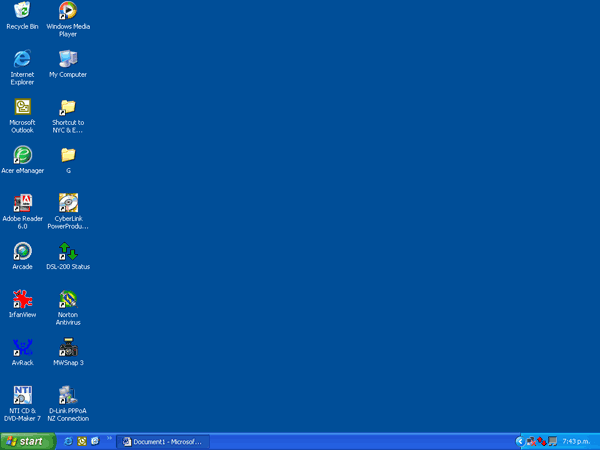
or does it look like this??
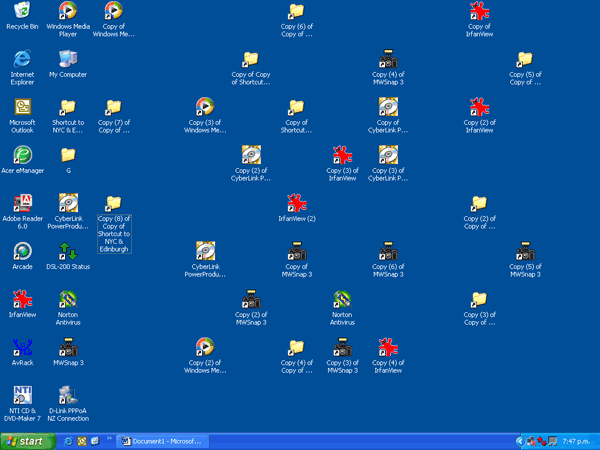
Pretty messy. Also hard to find what you want and there are multiple copies of the same icons. Confusing.
Parts of the Desktop
In the picture below the main parts of the desktop are named

How to tidy it all up
First off, look at what icons (the little pictures) you have. Are they files (the work you have done such as documents, workbooks etc), programmes or shortcuts? Shortcuts have the little arrow in a box at the bottom left corner of the icon. Right now don't worry about how they got there – we will look at that later.
A file on the Desktop is the actual file but a shortcut opens the document which is stored somewhere else on the computer.
Many people save their work either directly onto the Desktop or into the My Documents folder which is often the default, or first place the programme looks to store anything. Both the Desktop and My Documents can very easily get very confusing. In this section we will attack the Desktop.
Find the shortcuts and look for duplicates. If there are duplicate shortcuts – you will usually see that the duplicates have "Copy (2)" or similar in the names – and then delete them.
To delete them click once on a duplicate icon to select it (do NOT double click it!) and then press the Delete key on your keyboard
You will then be asked if you want to send the shortcut to the Recycle Bin. (This is what usually happens when you delete a file or other object. It gives you a second chance if you really didn't mean to delete it as you can get it back again later.)
Click the OK button or press the Enter key to send the shortcut to the Recycle Bin.
Do this with each of the obviously duplicate shortcuts.Now look for any duplicate file or programme icons. These will usually also show "Copy (x)" in the name. Just make sure that you have not previously deleted the original icon. Then delete these in exactly the same way as with the shortcuts.
Now you will have icons spread out all over the Desktop in no particular order. We can quickly and automatically tidy these up.
Point to any vacant part of the Desktop and click the Right Hand mouse button to display a "quick menu"
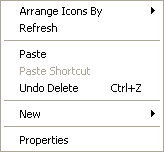
Now point to the Arrange Icons By option and a further sub-menu will fly out
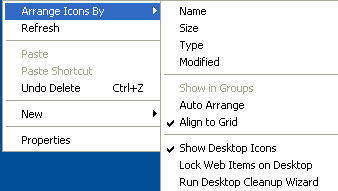
Now click on one of the options in the top part, let's choose Name to arrange the alphabetically. If you do not like that then simply repeat the process and choose a different option.
If you are running Windows XP you can also choose the Run Desktop Cleanup Wizard to clean up duplicate icons and unused icons. However, watch that you don't delete an icon you really want to keep, although it can be restored from the Recycle Bin later.
Some icons should not or cannot be deleted. These include:
Recycle Bin
My Computer
And some others depending on what operating system you are using.
Now you have got rid of the duplicate icons it is time to look at file and programme icons. Should they be on the Desktop or stored somewhere else? One of the big dangers of leaving them on the Desktop is that it is very easy to delete them or accidentally move them somewhere where you cannot find them.
Folders
If you really do want to keep a lot of files or shortcuts on the desktop it is a good idea to create folders to hold similar files.
For example, you may be currently taking three different U3A courses and have several files for each. Make a folder for each course and store the files for each in the relevant folder. This is still not a great place to keep your actual files but folders do clean up the Desktop and make it easier to find the file you want.
Say you are taking courses in Journalling, Antarctic and Astronomy. We will now create a folder for the Astronomy course.
On a blank part of the Desktop, click the right hand mouse button and from the quickmenu click on the New option.
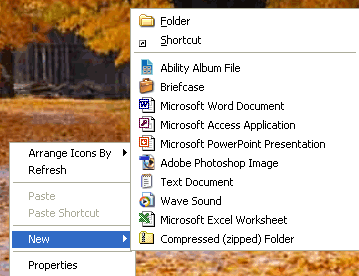
Click on the Folder option in the flyout menu
You will see a new folder appear on the desktop with the name "New Folder highlighted in blue – do NOT click anywhere or press Enter yet

Now just type the word Astronomy to name the folder, then either click somewhere on the Desktop or press Enter

Now, on a file icon relating to your Astronomy course, hold down the left hand mouse button and move the pointer over the new folder and releases the mouse button. The file should disappear – don't panic, you have not lost it!. It is now in the folder.
To check that the file is indeed in the folder you need to open the folder. To do this just double click the left mouse button on the folder icon. Or you could click once on it and then press Enter if you find it difficult to double click
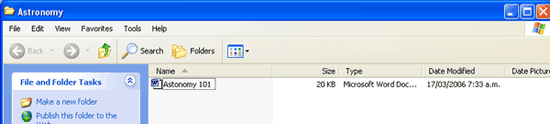
This has been done using Windows XP, but if you have an older version it will not have the "File and FolderTasks" section and the colours may be duller.
A folder Window will open. You can tell which folder it is by looking at the blue Title bar across the top. This one says Astronomy so you know you are in the correct folder.
You can also see your file listed in the window. There are several ways to view this and this particular one is called Details as you can see the name, the size, type etc.
To change a view in the folder click the little downwards arrow to the right of the View button

You will get a list showing, depending on your version of Windows, Thumbnails, Tiles, Icons, List, Details or in some versions options such as Large Icons, Small Icons.
Try each of these in turn till you get one you like.
Now, using the methods described above, create new folders for your other courses and drag the files into them
Your Desktop should now be a cleaner, meaner version of what you had.
Later we will discuss how to get your actual files off the Desktop to a safer storage area and just have shortcuts in your folders so it doesn't really matter too much if you accidentally delete them. Also how to retrieve them from the Recycle Bin if you do accidentally delete them.


bigdada - 18 years ago
Very helpful &easy 2 understand,just what i need.