






Organising the Desktop | Organising your Files | Oops, I can't find my files!
Find my Files (XP)
It happens to the best of us – no matter how well our folder structure is set up and how good we have been at saving our files, there will come a time when you just cannot find the file you want. What has probably happened is that you have been in a hurry and accidentally saved it into the wrong folder or got the name wrong.
There are ways to find your file, as long as it has not been permanently deleted or has been stored on some removable media such as a floppy disk, a CD or a pen drive. If they are stored on some removable media you will have to insert the media in it's drive and Search each in turn until you find what you are looking for.

The first place I would look is the Recycle Bin. When you delete a file by just pressing the Delete button this is where it will go (unless you deleted it from a floppy disk in which case it is gone permanently). If you look on your computer desktop you will see an icon marked Recycle Bin and it looks like the icon to the right in Windows XP. Older Windows versions, including 2000, ME, 98 and 95, look a little different but they all have the name of Recycle Bin. (If you are using Windows version 3.11 or older then you are out of luck.) If you double click this icon you will open a window which looks a bit like the My Computer dialogue.
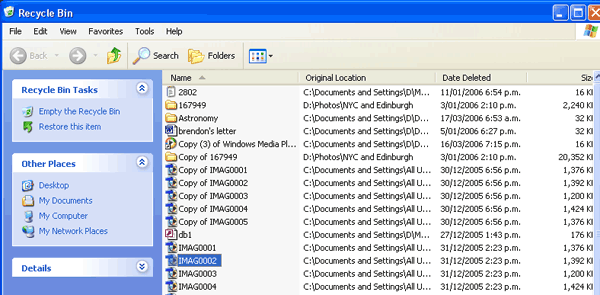
This is the XP version. I will give a set of instructions for the older versions later in this article. You will see a list of the files you have deleted showing in the right hand pane and some commands in the Recycle Bin Tasks section in the left hand pane.
The commands are:
Empty Recycle bin: which if you click on it will permanently delete all the files showing in the right hand pane. ONLY USE THIS IF YOU ARE ABSOLUTELY 100% CERTAIN THAT YOU WILL NEVER NEED THESE FILES AGAIN!!
Restore All Items: which will undelete all the files and put them back into the folders where they were when you deleted them. Even if you really didn't want to do this all that will happen will be that you may have to delete these files again from their folders, but you have not lost anything
Restore This Item: This shows when you have clicked on (selected) a file or number of files in the right hand pane. Clicking this command will put the selected files back where they originally were stored and remove them from the Recycle Bin
So your file was not in the Recycle Bin. The next action I would take would be to Search for the file on my hard drive(s).
Click on the Start button and then click on the Search command. This will be shown in the popup list in any version of Windows after version 3.11, but may look different depending on the version. I will use the Windows XP version here but show you the 2000 version later.
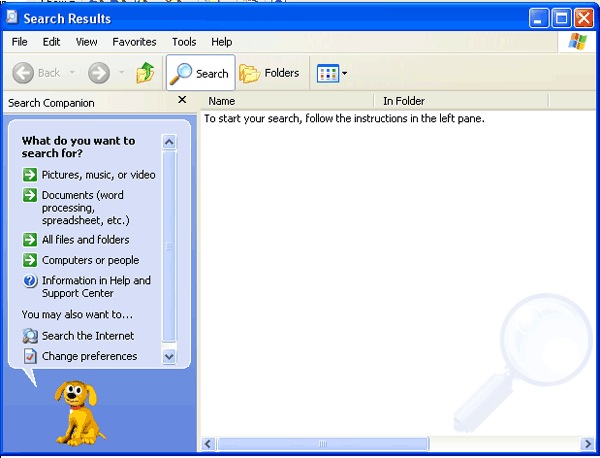
If I was looking for a Word document or Excel workbook I would choose the Documents (word processing, spreadsheet etc) option. This limits the search to only those types of files Similarly, the Pictures, music or video¸ option limits limits the search to music or graphics files
Clicking on the Documents command shows the following dialogue box
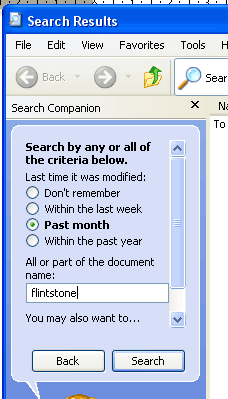
If you know when the document was saved you can make a selection from the Option buttons to limit the search to that period. This makes the search faster as it does not have to look for so many files. I have chosen Past month as I know I worked on my file within that time.
The type in part of the name – you will see I have typed in the name "flintstone" as I know that was part of the name.
Click on the Search  button to begin the search. When the search is finished you will see the Search Completed dialogue which will list all the files which fit the criteria you set.
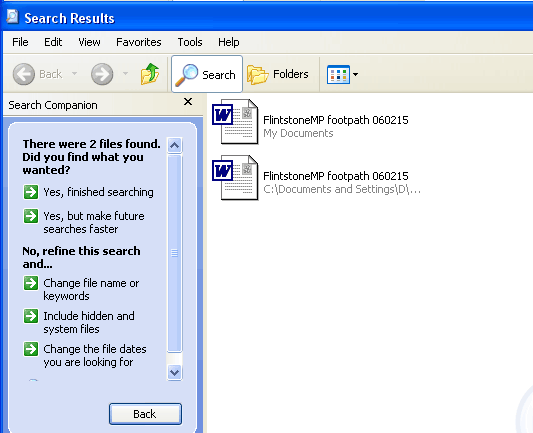
You can see that two files match the criteria I set, so all I have to do is select the one I need. You will see under the name in grey type the path to where the file was found. i.e. the folder where it was saved.
Now you just look at them and decide which one you want.
Often you get many more files that just two, sometimes a couple of pages full. This makes it harder to work out which one you want. If you look in the left hand pane you will see various options
If you choose the Change filename or keywords option you will get this dialogue:
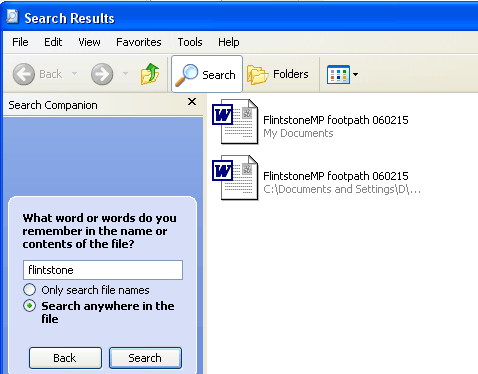
You can now change the word Flintstone to something else, or you can change the search to search anywhere in the file, as shown in the graphic, which searches the text of the file. This will return every file with the word "flintstone" somewhere in it rather than only in the filename.
After you wrote to Fred Flintstone you may have forgotten to name the file when you saved it so it may just be a default name such as Doc17 or something. This way you look inside the file for the keyword you want. Of course this will take quite a bit longer as it has to search every word in the text of the document rather than just then name.
But if it an important file, it is well worth the wait. Just remember to Save As the file and name it correctly when you save it again.
Find my Files (Windows 2000)
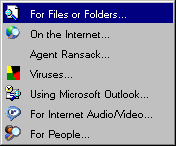
To Search in older versions of Windows go the Start button and then select the Search option to display the fly out menu.
Select the Search option to display the Search dialogue.
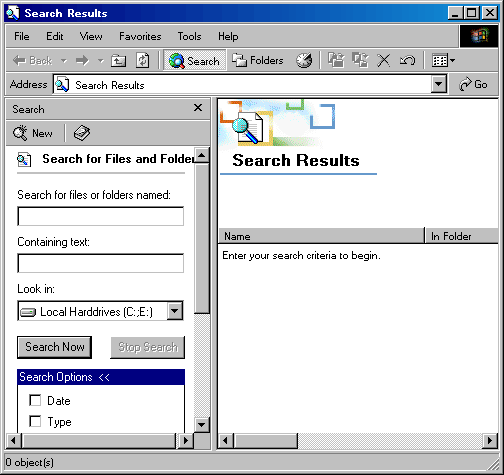
As you cab see it allows you to type in part of a name or even some unique text in the document you are looking for. You can also select the drive where you think it may be stored.
By scrolling down in the left hand pane you will see other options such as date so you can also search by the date you think you last save the file.
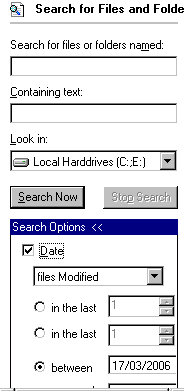
By using different options in here you can fine tune your search. But be careful; if you fine tune it too much you may miss the file you want because you may have the wrong date or something.
I have searched for all files on my C; or D; drives with the words Louis XIV in the name of the document. The right hand window pane shows the results of the searh.
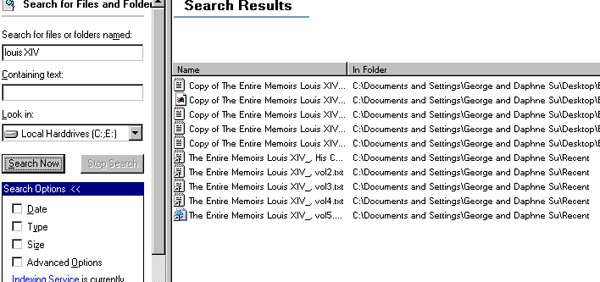
Double click on the file you are after to open it and make sure your go to the File Menu and Save As in the correct folder.
Check your files
And that's about all there is to it. Just practice a few times on documents you know where are stored and look at the results. There is a good chance that you have a copy of a file with the same name somewhere else in your system. Open them both and then Delete the old or incorrect file to prevent you from getting the wrong file in future.

anon1325 - 19 years ago
i transfered photos to a floppy disk with win/98..which were tasfered to a disk as i have a xp computer now..
how can i open the disk.. ??
thanking you.
rex wright…rexwright@ps.gen.nz