






Login

Forgot your password?
Font size: A- A+
Become a Member FREE

Join around 100,000 monthly visitors and 72,000 members: daily games, discussions, contribute articles, make new friendships, GrownUps-only offers & more...

Register Free Now!
Notices
WIN a Globus California Classics Tour for Two!
This year you could be taking a $9400 trip for two to California
Soothe Worry & Tension
...while enhancing your libido (men and women)
Sports & Travel Survey
Complete the survey and be in to win a $100 Westfield voucher
Let's Chat Over Lunch
Have a Free Lunch with Metlifecare
Feel All-Bran New
Feel All-Bran New
New Ways to Get Fibre Into Your Day
Win a return journey across Cook Strait
See more of New Zealand with Bluebridge
See the Difference
See the Difference
Eyesight Advice from Visique Optometrists
2degrees Offer
2degrees Offer
Making the CDMA switchover easy
Optometry & Eyewear Survey
We'd like to find out a little more about your optometry & eyewear preferences
CDMA Phone Network close down 31 July
Move now & get $79 credit with every Prepaid mobile
Keep up to date with us
Follow our updates, new comps and articles via Facebook and Twitter
List your Classified
House Sitters, Employment, For Sale, Property & Personals
Live Chat
Live Chat
With fellow GrownUps in our multi-room chat
Compare & Purchase Insurance products
Disclaimer: Grown Ups is not an Insurance Broker. We provide product information from recognised Insurance companies. We are not making recommendations and we accept no responsibility for decisions made as a result of using the information provided.'
R50 Sexual Health
R50 Sexual Health
Check out the new section available to everyone.
Recipes
Recipes
Find some delicious recipes by clicking here.
Guide to Retirement Living
Get your own copy for free, here.
Columnists

Vote in our Polls

Are you carpeting or re-carpeting a property in the next 6 months?

Category sponsor

Microsoft Word Tips: Toolbars

Microsoft Word is quite an easy programme to use, but there are lots of ways that many people never get to find which can make it even easier.

Selecting | Bold/Italics | Cut/Copy/Paste | Formatting | Quick Keys | Toolbars | Bullets | Tabs | Tables


Other Toolbar sections

 

font toolbar microsoft word

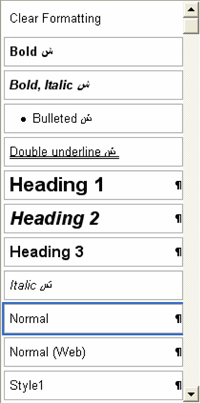
The panel showing Normal is the Styles box. If you click on this you can select from a list of preformatted styles which you can apply to your paragraph. For example, click in a paragraph and select Heading 2 from the list and your font will look like

font styles in microsoft word

Just click on the one you want.

Styles are very useful if you have a lot of headings in your document as you can apply the style to each heading and know they are exactly the same. Use Heading 1 for the main title, heading 2 for the major sections and heading 3 for sub sections.

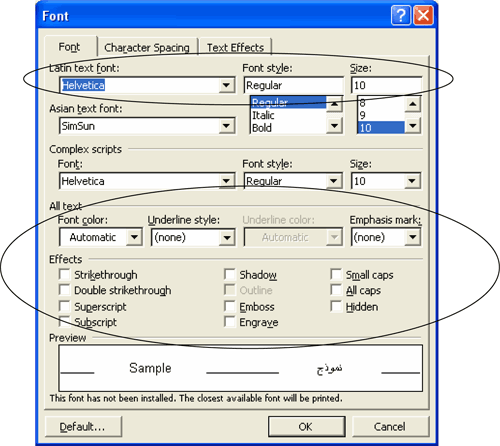
If you want to take full control of the formatting Ctrl + D will display the text formatting dialogue for you. This is less complex than it looks, but it is useful if you want to apply several formatting actions at once. You can change font type, size, bold, colours and some fancy effects all at once.

Don't get too carried away with it or you will just get a mess!!!
font dialogue in microsoft word

This may look a little daunting but ignore the Asian Text Font and the Complex Scripts sections. The two areas circled above are the main areas.

Another very useful button on the Main toolbar is the Format Painter

format painter button

This is often mistakenly used as the Paste button when copying. It will copy the format of a particular piece of text and apply it to another.

Let's say you have formatted a heading as Arial, 20 point Bold and you want to apply that to another heading.
  • Click in the formatted text
  • Click on the Format Painter button
  • Select the text to which you want to apply the new format
Hey Presto!! Your selected text now looks exactly like the other formatted text.

The Format Painter will now lose the format but you can make it hold the format and apply it to every thing you wish
  • Click in the formatted text (as above)
  • Double click the Format Painter
  • Select the first text to be formatted
  • Select the next text to be formatted
  • And so on
  • When you have finished formatting what you want, click once n the Format Painter to turnit off ­ otherwise you will format everything you type from then onwards

Published 19th Feb 2007

print

Advertisement

Advertisement

Article Information
Average Rating: 10
Explore This Topic

This article is part of the Technology topic. Click here to read articles, join discussions and more on this topic. Below are the latest articles in this topic.

Discuss This

Click here to start a discussion on this or Click here to read other discussions.

Contribute
Log in to post comments


Join GrownUps Free
By becoming a GrownUps member and part of the Community, you gain access to:
  • Enter Competitions
  • Go into regular prize draws
  • Play daily games
  • Join Discussion Groups
  • Find like-minded individuals and create lasting friendships
  • Receive special GrownUps offers and
  • Add you own articles of interest, recipes, pictures for fellow members to read and view.
All for FREE! So why not join now?

Register Now