






Microsoft Word is quite an easy programme to use, but there are lots of ways that many people never get to find which can make it even easier.
Selecting | Bold/Italics | Cut/Copy/Paste | Formatting | Quick Keys | Toolbars | Bullets | Tabs | Tables
Tables
Tables are a very useful tool in Word. Many users steer away from them because they sound like you would only use them for simple numeric spreadsheets. Nothing could be further from the truth. If you write up minutes of meetings or make agendas or anything where you need to line up headings in one column with text in another is where tables shine.
There are several ways to create tables but the easiest is to use the Table button  on the tool bar. Click on this and you will see a grid. Simply drag across it for the number of columns you want and two or three rows down. You can easily add rows when you are using the table.
In this example I am creating a table 3 rows x 3 columns
Press Enter three times and then make sure you move up one line.
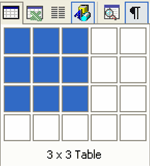
Here it is
Now click in the second row, left column and type "Agenda Item" then press the TAB key
NOTE: DO NOT USE THE MOUSE TO CLICK AROUND IN THE TABLE WHEN MOVING A COLUMN ACROSS
Agenda Item
Now type "Action" and press TAB
Agenda Item Action
Now type "Person Responsible" and press TAB see how it now enters the text and jumps to the first column in the next row
Agenda Item Action Person Responsible
Now type "Finance Report" in the cell and press TAB
Agenda Item Action
Person Responsible Finance Report
Now type "The Treasurer read his report and recommended that the payments made be approved" and press TAB. Note how the cell expands to hold the text.
Agenda Item Action Person Responsible Finance Report The Treasurer read his report and recommended that the payments made be approved
Now type "Moved by Mary" and press Enter. Then type "Seconded by Charlie" and press TAB
Agenda Item Action Person Responsible Finance Report The Treasurer read his report and recommended that the payments made be approved Moved by Mary Seconded by Charlie
See how a new row is added automatically added. So you can just keep on typing your information.
TIP: WHEN YOU ARE GOING TO CREATE A TABLE, FIRST PRESS ENTER TWO OR THREE TIMES, THEN MOVE BACK UP A LINE TO INSERT YOUR TABLE.
This is an easy way to let you out of your table when finished. You simply click in the line below the table and you are back in normal text.
Now the columns may not be the correct width so take your mouse and point to a column. You will see the pointer change to two small vertical lines. Hold down the left hand button and drag to columns to the desired width.
You can also manually change the row height in a similar manner by dragging the horizontal lines.
Why did I leave a blank row at the top of the table? to put in a heading!!
Select the three cells in the top row, then open the Table menu.
Meeting of the Ancient Mariner's Society
Held at the St James' Theatre, Tuesday 23rd Octember 2009 Agenda Item Action Person Responsible Finance Report The Treasurer read his report and recommended that the payments made be
approved Moved by Mary
Seconded by Charlie
Then Open the Table Menu and
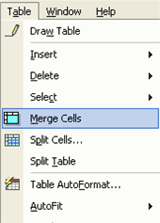
Click Merge Cells and they will merge into one. Type your heading in. If you want more than one line in the heading just press Enter at the end of each line.
Then you can centre the text and format it any way you wish.
Oh, you don't want the lines? When you point to the table you should see a little plus + sign at the top left hand corner. Click on this to select the whole table then open the Format Menu and select Borders and Shading option.
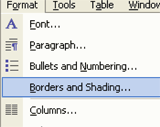
The when the dialog opens select None
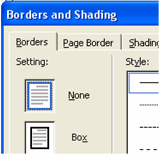
and all the lines will disappear.
Meeting of the Ancient Mariner's Society
Held at the St James' Theatre, Tuesday 23rd Octember 2009 Agenda Item Action Person Responsible Finance Report The Treasurer read his report and recommended that the payments made be approved Moved by Mary Seconded by Charlie
There are many more things you can do with tables but they would be a special course on their own.
This set of Tips and Tricks is aimed at getting you started and showing easy ways to do things. I hope you enjoyed it and found it useful.

Join the Discussion
Type out your comment here:
You must be logged in to post a comment.