







Microsoft Word is quite an easy programme to use, but there are lots of ways that many people never get to find which can make it even easier.
Selecting | Bold/Italics | Cut/Copy/Paste | Formatting | Quick Keys | Toolbars | Bullets | Tabs | Tables
Cut, Copy and Paste
These are simple but powerful commands. Let's look at what they do:
Cut: Use this when you want to move a bit of text from one place to another in your document. It will delete the original text when you have completed the action by Pasting
Copy: This will copy the selected text, leaving the original text in it's original place
Paste: This deposits the text you have Cut or Copied wherever your cursor is situated.
So to move a bit of text from one place to another in your document, or even to a different document, select the text using your favourite method, then Cut it. Move the cursor to the start of where you want it to go and then Paste it. The Copy command is the same except it leaves the original text where it was and Pastes a copy to the new location as well.
There are several ways to Cut, Copy and Paste. You can use the toolbar buttons, the Edit Menu, quick keys, right hand mouse click and Drag `n' Drop. Sound too many options? Well, again you don't have to use them all. Try them till you get one that is easy for you and works for you. I will describe each in turn here so you can try them out.
Toolbar buttons:

Look on your tool bar to find these buttons. The scissors button is Cut, the two page button is Copy and the clipboard button is Paste
Note: Just to the right of these three buttons is a brush button. DO NOT USE IT TO PASTE. It does something else entirely.
Edit Menu: Point to the Edit Menu
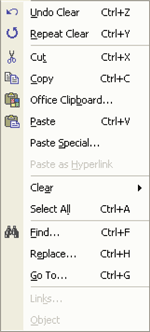
You can see the Cut, Copy and Paste options there. Note also that they have a keystroke combination written beside them. This is the next method.
Quick Keys: There are three quick key commands, Ctrl + X is Cut, Ctrl + C is Copy and
Ctrl + V is Paste. Just select the text , Cut or Copy it, position the cursor where you want the text to go and press the Paste combination.
Right Hand Mouse: Select your text then click the Right Hand mouse button to display a Quick Menu.
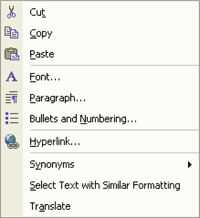
Again you will see the Cut, Copy and Paste commands. Click either Cut or Copy, then place your cursor where you want to put the text and click the Paste command.
You will see several other options on this Quick Menu you can experiment with them if you like although I will not be discussing them here.
Drag `n' Drop: This is usually found by accident and can very easily make a complete mess of what you are trying to do remember the Undo command Ctrl + Z) if you get it wrong.
First select your text. The point back into it and press the Left Hand mouse button and hold it down. The drag the test to where you want it. Oops, you wanted to copy?. This action moves the text and does not leave the original text in place.
To Copy, hold down the Ctrl key while you drag. You should see a little Plus + on the cursor as you drag. This means you are copying. You do not need to Paste, that is done automatically.
A better way to drag `n' Drop is to select your text then drag by holding down the Right Hand mouse button. When you let it go where you want the text to drop it will display a small menu of Copy Here, Paste Here or cancel. Click on the option you require using the Left Hand button.
I tend to use the Quick Keys or the Right Hand Mouse button options but you can use whatever works easily and accurately for you.

- 12 years ago
what to know microsoft word pervete
because I want to be a teacher on the subject
thanks